First run
After install, walk through a low-risk path: pick a tenant, confirm it's the right one, then preview before anything runs.
Checklist
- Launch YeetnGreet on your PC
- Sign in to your Microsoft 365 tenant on Tenants. Admin consent must already be granted in that tenant. See Admin permissions and consent
- Confirm the tenant name and domain are the ones you expect
- Open Offboard or Onboard and click Preview before you confirm
- Optionally save a template if this tenant has a standard checklist
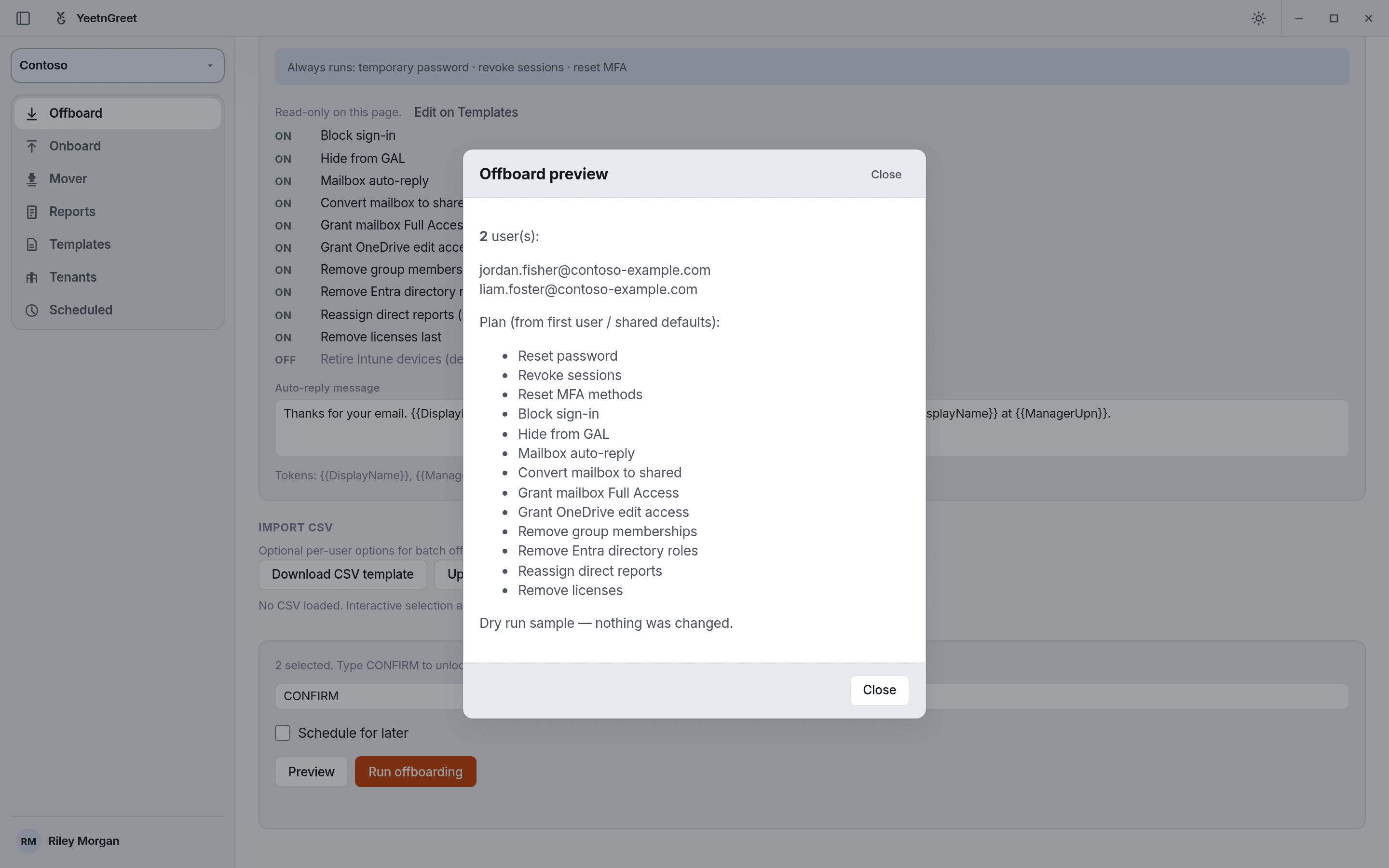 Preview lists every planned action and changes nothing.
Confirm the tenant
Say the organization name out loud before you confirm. Running a job in the wrong tenant is expensive. The tenant picker at the top of the left rail shows which tenant every job runs in. See Multi-tenant.
Suggested first job
| Goal | Path |
|---|---|
| Practice offboard flow | Offboard with a test user or dry-run style preview |
| Practice onboard flow | Onboard creating a clearly labeled test account |
| See license value | License audit on a tenant you know well |
Where local files live
Working files (templates, local logs, and related data) stay on your PC, typically under AppData or Documents — unless you choose another location. They are not uploaded to YeetnGreet’s cloud as job payloads.