Report delivery
Send license reports to the places your team already works: email, Teams, Slack, or your own automation.
Set it up in Reports → Report settings → Report delivery. Delivery settings are saved per tenant, and every channel is optional.
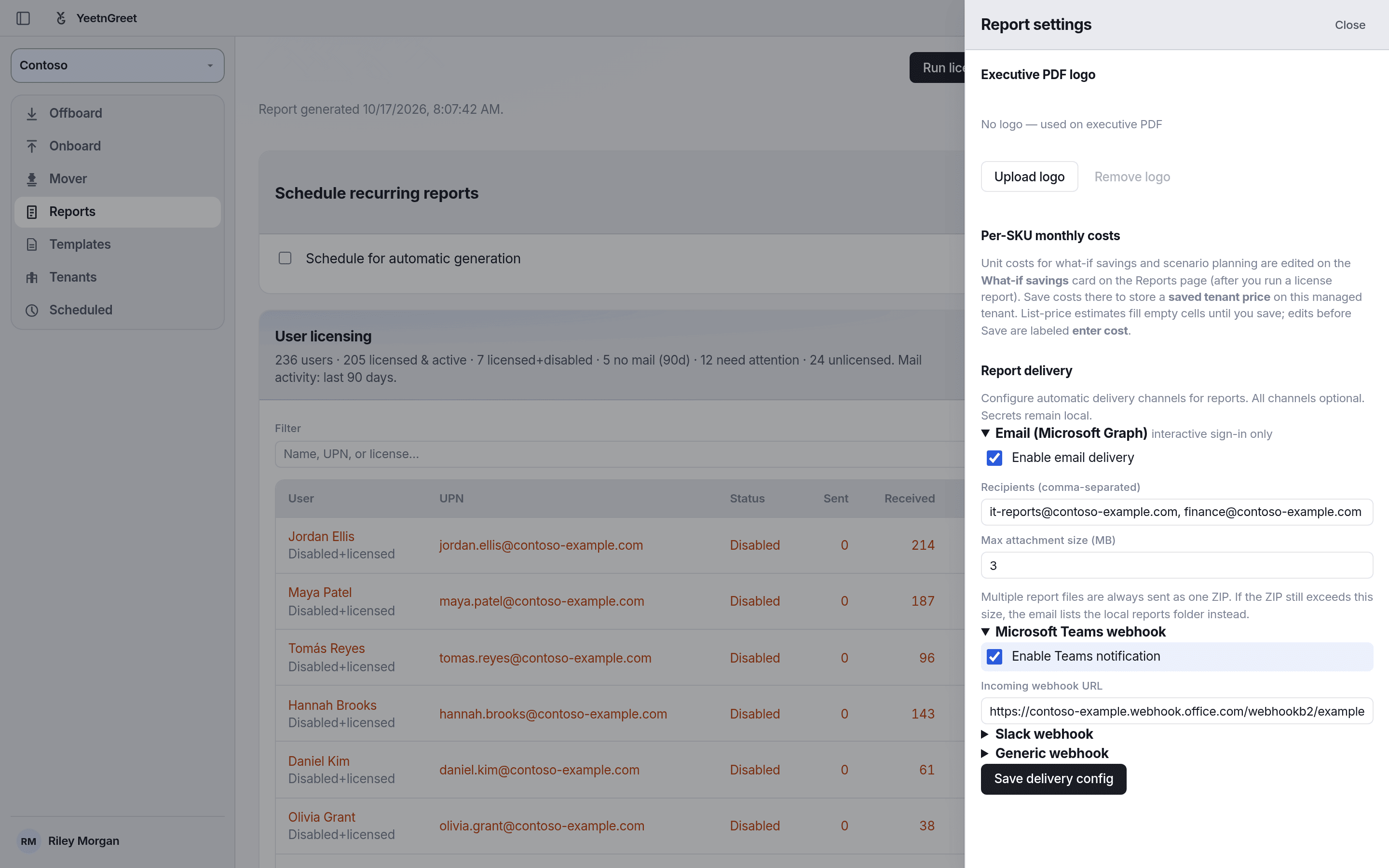 Turn on the channels you want, then click Save delivery config.
Channels
| Channel | What it does |
|---|---|
| Email (Microsoft Graph) | Sends the report files to the recipients you list. Needs an interactive sign-in. Not available in app-only mode. |
| Microsoft Teams webhook | Posts a notification to a Teams channel through an incoming webhook URL. |
| Slack webhook | Posts a notification to Slack through an incoming webhook URL. |
| Generic webhook | Sends a JSON payload to your HTTPS endpoint: {tenant, reportType, timestamp, status, files}. |
Email sends several files as one ZIP. If the ZIP is bigger than the Max attachment size (3 MB by default, up to 10 MB), the email lists the local reports folder instead of attaching the files.
Setup
- Create the destination: a mailbox or distribution list, a Teams incoming webhook, a Slack incoming webhook, or an HTTPS listener.
- Open Reports → Report settings, expand the channel, tick Enable, and paste the address or URL.
- Click Save delivery config.
- Run a report once to check that it arrives, then add it to a schedule.
Keep webhook URLs private
Delivery settings stay on this PC. Anyone with a webhook URL can post to that channel, so store it like a password.
What-if exports are never delivered
What-if scenario exports are saved on this PC only. They are never emailed or posted, even when delivery is set up.
To see what gets delivered, download the sample reports.