Onboard
Create or enable Microsoft 365 users, optionally assign licenses, groups, and a manager, then unlock Live work with an explicit CONFIRM.
Before you start
- Correct tenant selected
- Naming / UPN convention for this customer
- Which SKUs, groups, and manager apply (or a saved template)
Steps
1. Open Onboard
Create a new account or enable an existing one. You can require a password change on first sign-in when your process calls for it.
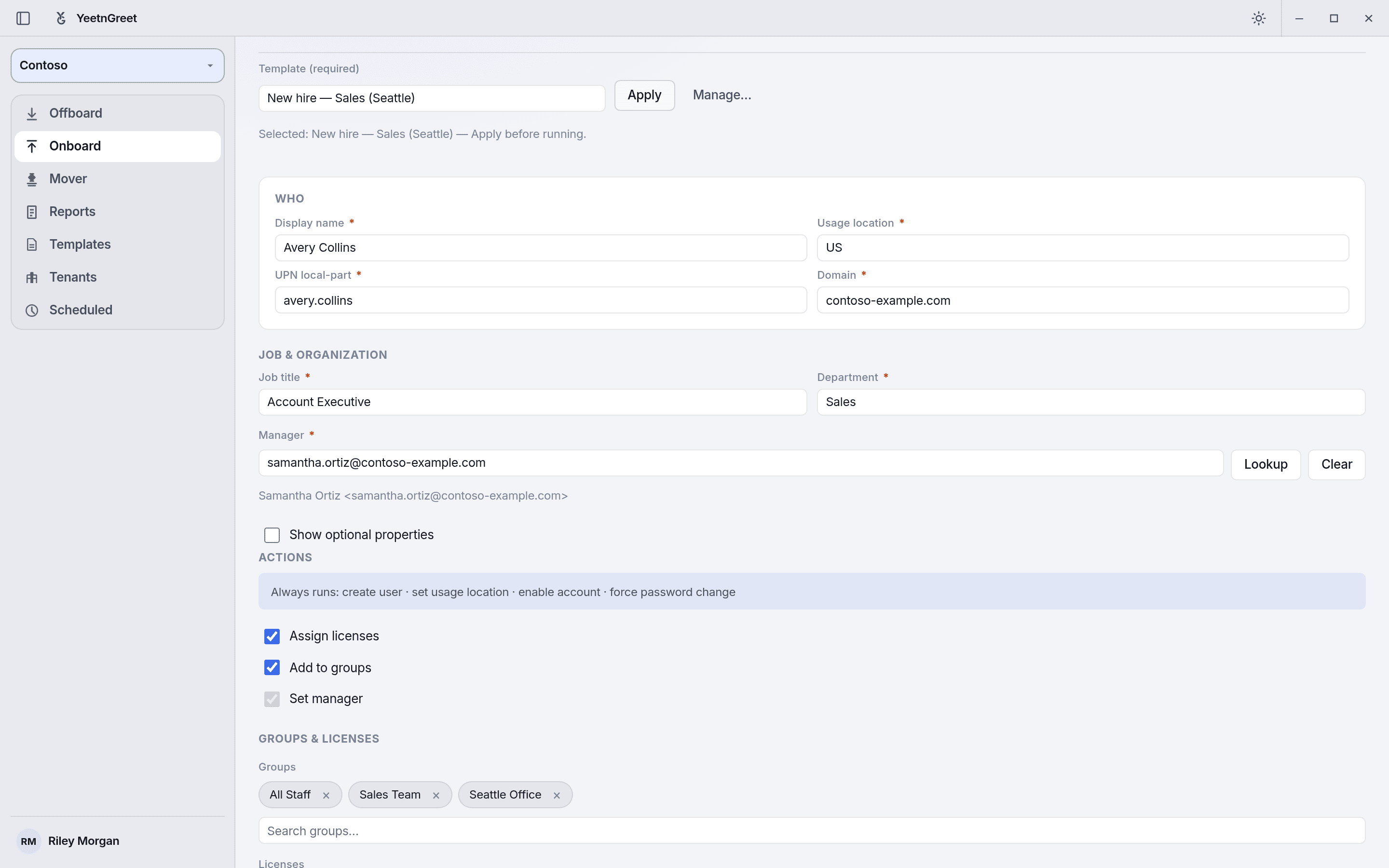 A template fills groups, licenses, and required fields; you add the person's name, UPN, and manager.
2. Optional assignments
| Option | Typical use |
|---|---|
| Licenses | Assign the right SKUs up front |
| Groups | Security / M365 groups for access |
| Manager | Org hierarchy and approval routing |
3. Templates and CSV
- Templates — repeatable onboard defaults per tenant. See Templates
- CSV — bulk create/enable with the same confirm path
4. CONFIRM
Type CONFIRM (or the app’s required confirmation text) to unlock Live onboard. Preview first when the UI offers it.
5. Run or schedule
Same model as offboard: run immediately on this PC, or schedule for later on this PC.
Test accounts
For practice, use a clearly labeled test UPN and remove it when done — especially on production tenants.