License audit
See which Microsoft 365 licenses are assigned — with SKU detail, mail activity (last 90 days), and attention rows for disabled + licensed and no mail users.
In the app this is the User licensing card on Reports after you run a license report.
When to use it
- Quarterly license hygiene
- Before a renewal or true-up
- After a merger / tenant consolidation wave
- Finding named users to reclaim before you cut prepaid licenses
Steps
- Select the tenant and sign in
- Open Reports → Run license report
- Review the User licensing summary and table (filter by name, UPN, or license)
- Pair with What-if for priced reclaim and scenario planning
- Export or deliver as needed
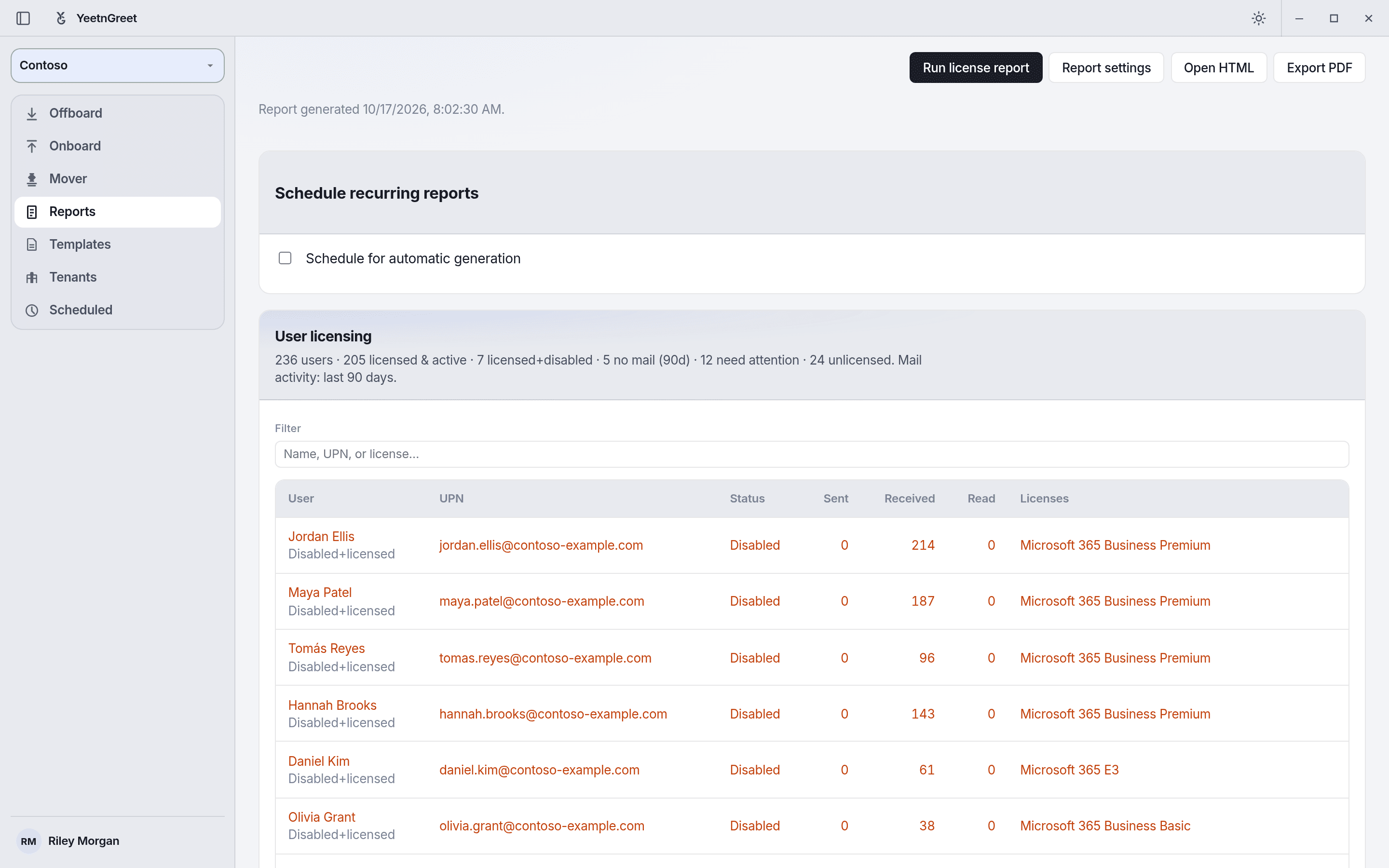 The User licensing card lists the people who need attention, with their mail activity and licenses.
To see the exported report, download the sample license health report (PDF, HTML, and CSV, made with fictional data).
Plans
Free includes a limited license-report preview. Full named-user audit, exact savings, and exports are on paid plans. See Pricing and licensing.
Mail activity
No-mail detection needs Reports.Read.All. If mail metrics are missing, re-sign in to grant the permission — the app will not treat every licensed user as inactive when mail data did not load.