Reports overview
YeetnGreet reports help you see Microsoft 365 license waste from the same technician PC model as onboard/offboard jobs. You run Graph queries locally, then export or deliver results yourself.
Report types
| Report | Purpose |
|---|---|
| License audit | Who is licensed, mail activity (90d), disabled+licensed and no-mail attention rows |
| Unused licenses | Unused prepaid licenses and licenses on disabled accounts |
| What-if | Reclaim savings and a scenario planner for moves, hires, and cuts |
| Sample reports | Download example exports made with fictional data |
In the app these appear together on Reports after you run a license report — not as separate menu items.
How to run
- Select the managed tenant and sign in
- Open Reports → Run license report
- Review User licensing (audit) and What-if (reclaim + scenario planner)
- On the What-if card, type your own unit prices and click Save costs
- Optionally build a named scenario and export it to this PC, schedule a recurring report, or send the license report via Delivery
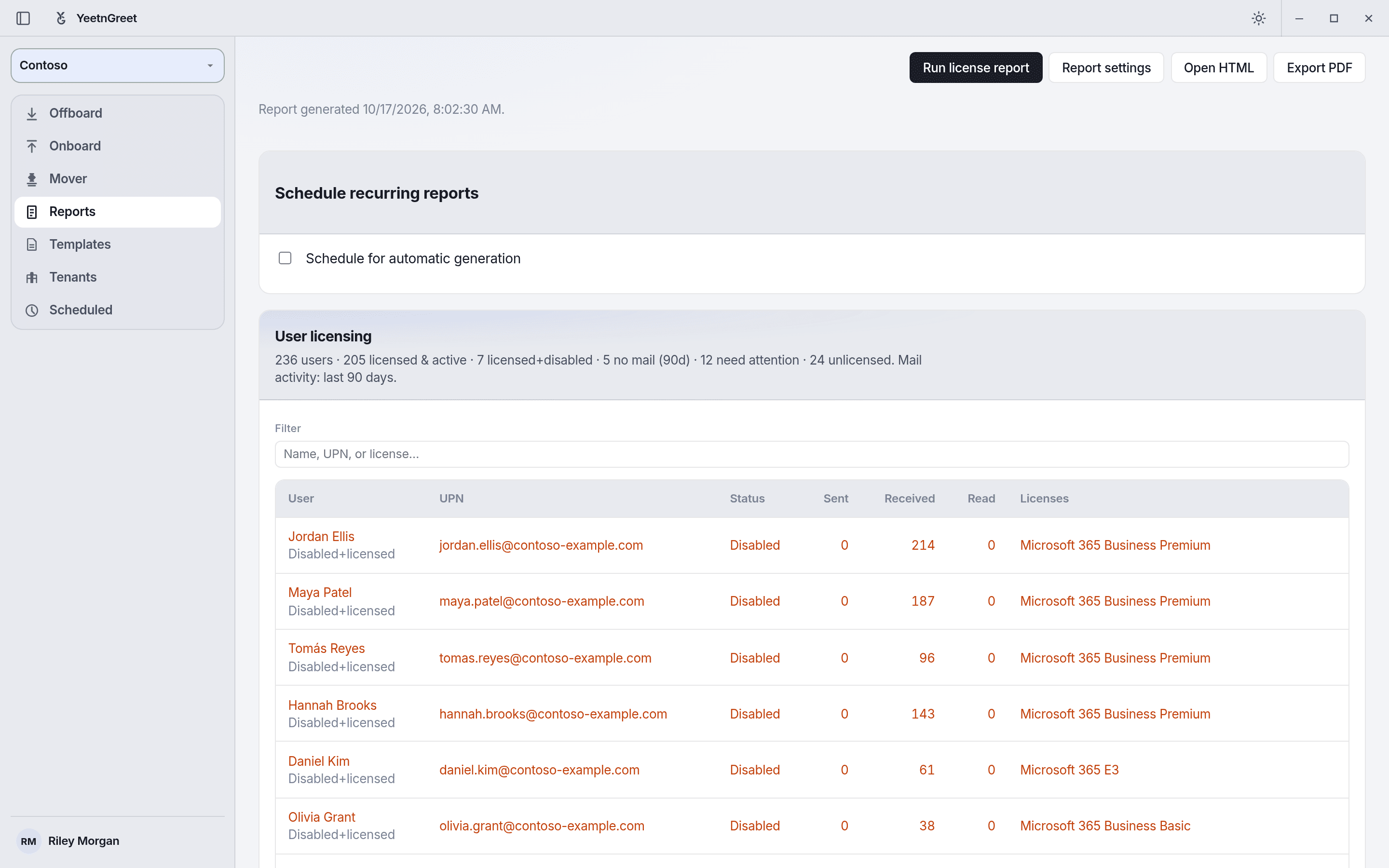 License audit: tenant totals up top, then every licensed user who needs attention — disabled + licensed or no mail in 90 days.
Plans
Free includes a limited license-report preview (bucketed savings, no SKU/$ detail or named users). Full SKU tables, exact savings, named users, scenario export, and deliveries are on paid plans. See Pricing and licensing.
Data path
Report queries use Microsoft Graph from the technician PC (Reports.Read.All for mail activity). Exports and delivery stay under your control — YeetnGreet does not host a data lake of customer report content. What-if scenarios are projections only; they never change licenses in the tenant, and scenario exports are saved on this PC only.